


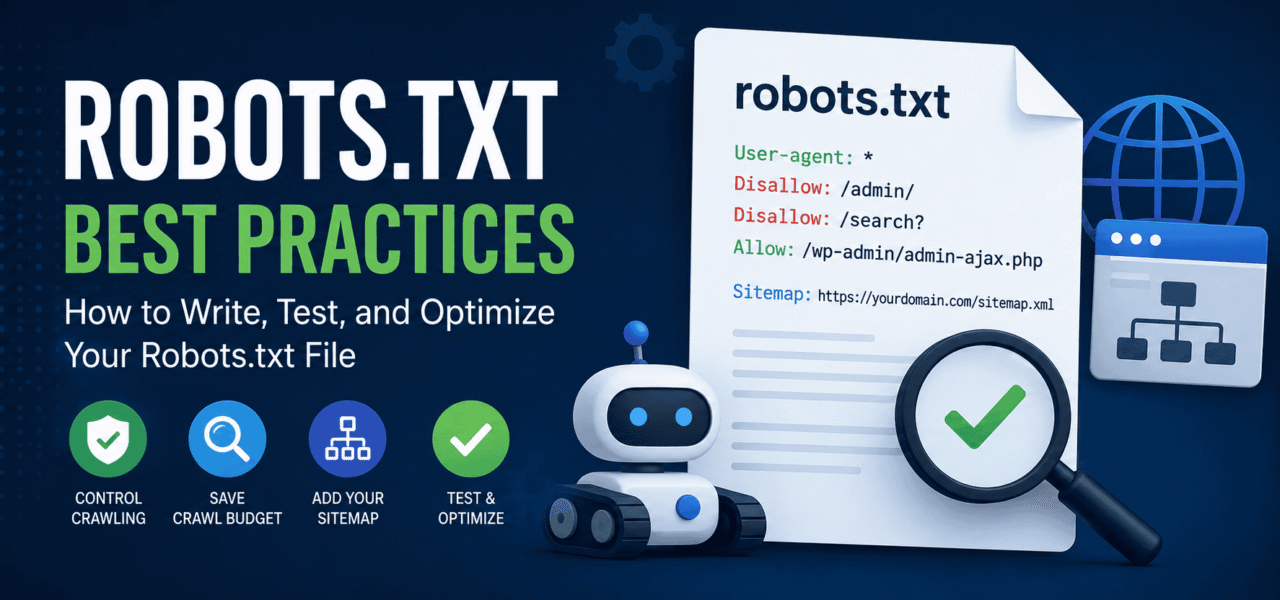
If you’ve ever worked on a website, you’ve probably come across the robots.txt file. It looks simple—just a few lines of text—but a single mistake inside it can create major SEO problems. In some cases, websites have accidentally disappeared from Google’s search results because someone left the wrong rule in production.
The good news is that robots.txt isn’t difficult to understand once you know what it actually does. The bad news is that many people misunderstand its purpose. One of the biggest misconceptions is believing that robots.txt prevents pages from being indexed. It doesn’t. It only tells search engine crawlers whether they’re allowed to crawl specific URLs.
In this guide, you’ll learn how robots.txt works, how to write it correctly, what should and shouldn’t be blocked, how it compares with the noindex directive, and how to test every change before it affects your website.
What Is Robots.txt and What Does It Actually Do?
The robots.txt file is part of the Robots Exclusion Protocol. It’s a plain text file located in the root of your website:
https://yourdomain.com/robots.txt
Whenever a search engine crawler visits your website, one of the first files it requests is robots.txt. The crawler checks the rules and decides which pages or directories it should crawl.
Think of it as a set of instructions rather than a security system. You’re asking crawlers to stay away from certain parts of your website, but you’re not locking the door.
What Robots.txt Does
- Controls crawler access to URLs
- Helps reduce unnecessary crawling
- Improves crawl efficiency
- Allows you to point crawlers toward your sitemap
What Robots.txt Does NOT Do
It doesn’t prevent pages from being indexed.
If another website links to a blocked page, Google may still index that URL even if it has never crawled the content.
It doesn’t hide private information.
Anyone can visit your robots.txt file in a browser and read every rule inside it.
It doesn’t stop users from accessing pages.
Visitors can still open blocked URLs directly if they know the address.
Crawling vs. Indexing
This is probably the most important concept to remember.
- Disallow tells crawlers not to crawl.
- noindex tells search engines not to keep a page in their search index.
These are completely different actions, and confusing them often leads to SEO issues.
Robots.txt Syntax Reference
Fortunately, robots.txt follows a very simple syntax.
Basic Structure
User-agent: *
Disallow:
Allow:
Sitemap: https://yourdomain.com/sitemap.xml
Every rule belongs to a specific crawler.
User-Agent Directives
Examples include:
User-agent: *
Applies to all crawlers.
User-agent: Googlebot
Applies only to Google’s main web crawler.
User-agent: Googlebot-Image
Applies only to image crawling.
User-agent: GPTBot
Applies to OpenAI’s web crawler.
Each user-agent group is processed independently, so different bots can receive different instructions.
Disallow Rules
Block everything:
Disallow: /
Never use this on a live website unless your goal is to stop all crawling.
Block an admin area:
Disallow: /admin/
Block internal search pages:
Disallow: /search?
Allow everything:
Disallow:
An empty Disallow directive simply means there are no restrictions.
Allow Rules
Sometimes you want to block an entire folder while making one section accessible.
Example:
User-agent: *

Disallow: /cms/
Allow: /cms/public/
In this case, crawlers can access only the public folder.
Wildcard Patterns
Wildcards make robots.txt much more flexible.
Match any characters:
Disallow: /*.pdf$
Blocks every PDF file.
Block parameterized URLs:
Disallow: /*?*
Use this carefully because many modern websites rely on URL parameters for important pages.
What Should You Block with Robots.txt?
Not every page deserves Google’s crawl budget.
Good candidates include:
Disallow: /admin/
Disallow: /wp-admin/
Disallow: /staging/
Disallow: /dev/
Disallow: /internal/
Disallow: /api/
Disallow: /search?
Disallow: /account/
Disallow: /checkout/thank-you/
You may also want to block duplicate URL parameters such as:
/products?sort=
/category?filter=
Large media files can also waste crawl resources.
Example:
Disallow: /uploads/*.mp4
Example of a Well-Configured Robots.txt
User-agent: *

Disallow: /admin/
Disallow: /wp-admin/
Disallow: /search?
Disallow: /api/

Allow: /wp-admin/admin-ajax.php

Sitemap: https://yourdomain.com/sitemap.xml
For most websites, something this simple is enough.
Critical Things You Should NOT Block
Many SEO problems come from blocking pages that Google actually needs.
Avoid blocking:
- CSS files
- JavaScript files
- Image directories
- Your homepage
- Canonical pages
- AMP pages
- Sitemap files
Google renders pages much like a browser. If CSS or JavaScript is blocked, Google may not fully understand how your page appears or functions.
The Biggest Mistake
One of the most common disasters happens after a staging website goes live.
Developers often use this during development:
User-agent: *

Disallow: /
If nobody removes this before launch, Googlebot is blocked from crawling the entire website.
This mistake can seriously damage visibility if it goes unnoticed.
Always review your robots.txt file before deployment and verify it after every release.
Robots.txt vs. Noindex
These directives solve different problems.
| Goal | Robots.txt Disallow | Noindex Meta Tag |
|---|---|---|
| Stop crawling | ✅ | ❌ |
| Stop indexing | ❌ | ✅ |
| Remove page from search | ❌ | ✅ |
| Hide confidential content | ❌ | ❌ |
| Reduce crawl budget waste | ✅ | Partial |
The important takeaway is simple.
If you completely block crawling using robots.txt, Google may never see the noindex tag on that page.
That’s why pages you don’t want indexed should usually remain crawlable while containing a proper noindex directive.
How to Test Your Robots.txt
Never assume your file works correctly.
Testing only takes a few minutes.
Google Search Console
Google Search Console lets you review your robots.txt configuration and test URLs against your current rules.
It’s usually the first place to check after making changes.
Manual Testing with Curl
A quick command confirms that the file is accessible.
curl https://yourdomain.com/robots.txt
You should receive a 200 response.
If you see a 404, redirect, or server error, fix that before doing anything else.
Online Robots.txt Validators
A dedicated robots.txt checker can identify common issues automatically, including invalid directives and accidental blocking rules.
Audit Checklist
Before publishing any update, verify:
- robots.txt returns HTTP 200
- No production site contains
Disallow: / - CSS and JavaScript are accessible
- Sitemap is declared
- Rules match your intended crawl strategy
Adding Your Sitemap
Every robots.txt file should include a sitemap reference.
Example:
Sitemap: https://yourdomain.com/sitemap.xml
If your website has multiple sitemaps, list each one individually.
This helps search engines discover your content more efficiently.
Robots.txt for AI Crawlers
As AI-powered crawlers become more common, many publishers are updating their robots.txt files.
Examples include:
User-agent: GPTBot
Disallow:

User-agent: Google-Extended
Disallow: /

User-agent: CCBot
Disallow: /
Other AI crawlers may include Anthropic’s crawler or additional research bots.
Whether you allow or block them depends on your publishing strategy and licensing preferences.
This area continues to evolve, so reviewing crawler documentation periodically is a good habit.
Best Practices Checklist
Before finishing your robots.txt, ask yourself these questions:
- Does the file return HTTP 200?
- Is there any accidental
Disallow: /? - Are CSS and JavaScript crawlable?
- Have you included your sitemap?
- Are duplicate pages blocked instead of important pages?
- Did you test every major URL?
- Have you reviewed rules after deployment?
If you answer “yes” to every item, you’re probably in good shape.
Conclusion
Robots.txt is one of the smallest files on your website, but it has an outsized impact on SEO. Used correctly, it helps search engines focus on the pages that matter most while avoiding unnecessary crawling. Used incorrectly, it can block valuable content, waste crawl budget, or even prevent an entire website from being crawled.
Remember the key principle: Disallow controls crawling, not indexing. If your goal is to remove a page from search results, a noindex directive is usually the right tool.
Finally, don’t treat robots.txt as a “set it and forget it” file. Review it after every major deployment, test it regularly, and make sure it continues to reflect your site’s current structure.
Helpful Resources
- robots.txt checker: https://techyseo.com/features/robots-txt
- crawl budget optimization: https://techyseo.com/blog/crawl-budget-optimization
- sitemap validation: https://techyseo.com/features/sitemap-validation
CTA
TechySEO automatically checks your robots.txt on every crawl, detecting blocked pages, missing sitemap declarations, and configuration mistakes before they affect your rankings.
Start your free trial today: https://techyseo.com
